What's New in Snap Schedule 2011
We've listened to you, our customers, and added many new features that you really
want and need. Snap Schedule 2011 now gives you more power, more control and more
flexibility to schedule your employees – without spending a lot of time. What's
more, we make it easy for you to upgrade. Snap Schedule 2011 easily reads your existing
schedule files and upgrades them in minutes.
New and Improved User Interface Features
Snap Schedule 2011 has a new look featuring the new Microsoft Office 2010
Fluent interface.
Improved Ribbon
The Ribbon has a facelift and a new File tab to easily find system level commands.
When you click the File tab, you will see many of the same basic commands that you
saw in the Application Button from earlier releases of Snap Schedule.
Backstage View
Clicking the File tab will take you to the Snap Schedule Backstage view.
The Backstage view is where you can perform operations related to managing the schedule
as a whole, such as New, Open, Save, Print, etc. If you decide not to do anything
in the Backstage view, clicking the File tab again will take you back to wherever
you originally were.
Persistent User Settings
Snap Schedule 2011 remembers your schedule view settings so the next time
you start, you will have the exact same settings as when you logged off. Best of all,
your settings remain even when you log on to the same schedule file from another
computer.
Top of Page
Improved Schedule Views
Task View
- On the Task Assignment panel, you can now choose to show all tasks or only
the applicable tasks for the selected filter criteria. This feature is handy when
you have specified who can perform which tasks and want to minimize the chance of
assigning a task to an unauthorized employee. Applicable Tasks is the default selection
at each program start-up. The logic used by Snap Schedule 2011 to determine
applicable tasks is as follows:
- Use the criteria set forth in the Display Filter to obtain a list of all applicable
shift locations.
- From the list of applicable shift locations, derive a list of employees who are
authorized to work at those locations.
- From the list of authorized employees, derive the applicable tasks as the tasks
that those employees are allowed to perform.
- When you choose to show only applicable tasks on the Task Assignment panel, the
Right-Click context menu will only show the applicable tasks.
- You now have the option to make certain tasks more visible in the Task view. From
the Employee Count Graph Configuration form, you can select the option to darken
the tasks that are excluded from the Employee Count Graph, effectively highlighting
the tasks that are included.
Daily View by Employee
- On the Shift Assignment panel, you can now choose whether to show all shifts or
only the applicable shifts for the selected filter criteria. The logic used by Snap
Schedule to determine applicable shifts is as follows:
- Use the criteria set forth in the Display Filter to obtain the list of all applicable
shift locations.
- From the list of applicable shift locations, derive a list of employees who are
authorized to work at those locations.
- When you choose to show only applicable shifts on the Shift Assignment panel, the
Right-Click context menu will only show the applicable shifts.
- You now have the option to display summary data for any combination of employee
work hours, on call hours, and paid time off (PTO) hours. You can also display the
labor cost summary data for the selected date range. The hourly and cost data is
automatically updated as you change shift or time off assignments.
Daily View by Shift and Shift View
- On the Employees panel, you can now choose whether to show all employees or only
the applicable employees for the selected filter criteria. The logic used by Snap
Schedule to determine applicable employees is as follows:
- Use the criteria set forth in the Display Filter to obtain the list of all applicable
shift locations.
- From the list of applicable shift locations, derive the applicable employees as
the employees who are authorized to work at those locations.
- When you choose to show only applicable employees on the Employees panel, the Right-Click
context menu will only show the applicable employees.
- The Employees panel now has a Choose button to help you select the best available
employees to fill an open shift.
Calendar View
- Shift assignments are now sorted by shift start time.
- On the Shift Assignment panel, you can now choose whether to show all shifts or
only the applicable shifts for the selected filter criteria. The logic used by Snap
Schedule to determine applicable shifts is as follows:
- Use the criteria set forth in the Display Filter to obtain the list of all applicable
shift locations.
- From the list of applicable shift locations, derive the applicable shifts as the
shifts whose locations match the authorized locations.
- When you choose to show only applicable shifts on the Shift Assignment panel, the
Right-Click context menu will only show the applicable shifts.
Top of Page
New Scheduling Conflict Checks
- You can now individually select the validation checks you would like the system
to perform and pick the display color for each resulting error flag using the Schedule
Validation tab in the Business Information and Operational Settings form.
- The following new validation checks have been added:
- Assigned employee has a skill that has expired
- Assigned employee has a skill that is about to expire
- A lack of required rest time between employee’s consecutive shift assignments
- Employee is not authorized to perform assigned tasks
Top of Page
Enhancements to Existing Reports
- Added shift location as a filter criterion where applicable.
- For all the Assignment Calendar reports and Employee Calendar reports, the small
square shift symbol for each shift assignment is now colored using the shift’s background
color. Likewise, the small circle time off symbol for each time off assignment is
now colored using the time off reason’s background color.
- For the Assignment Calendar reports, shift assignments are now listed with the
actual shift assignment start and end times instead of the default shift start and end
times. Employee shift assignments with the same start time and same end time are
grouped together to save space on the calendar.
- The Monthly Assignment and Time Off Calendar report and the Employee Monthly Calendar
report will now display shift description instead of shift code and time off reason
description instead of time off reason code for clarity.
- For labor cost reports, there is added logic to calculate shift premium only on the
portion of the shift that is applicable. This change is to accommodate the new shift
premium option which allows you to specify that shift premium is only applicable
for a certain time period during the day.
- For several reports, a new option to insert a page break for each selected report
group (employee, day, location, shift etc.) is available.
Top of Page
New Reports
Nine new reports:
- Employee Weekly Time Sheet
- Employee Bi-Weekly Time Sheet
- Employee Period Time Sheet
- Shift Coverage by Position
- Daily Task Assignments
- Weekly Assignment Calendar by Location. This report displays a full week of daily
shift assignments in the familiar weekly calendar format, one calendar for each
shift location.
- Weekly Time Off Calendar. This report displays a full week of time off absences
in the familiar weekly calendar format.
- Monthly Assignment Calendar by Location. This report displays a full month of daily
assignments in the familiar monthly calendar format, one calendar for each shift
location.
- Monthly Time Off Calendar. This report displays a full month of time off absences
in the familiar monthly calendar format.
Top of Page
Changes Made to Forms to Support New and Enhanced Features
Employee Form
- Added separate tabs for authorized skills and tasks
- Allowed specification of multiple availability intervals for each day of the week
in the Work Schedule tab.
Shift Assignment Reason Form
- Added the Authorized Employees tab to allow specification of which employees can
be assigned the shift assignment reason.
Location Form
- Locations can now be made inactive.
- Added a "Notes" field.
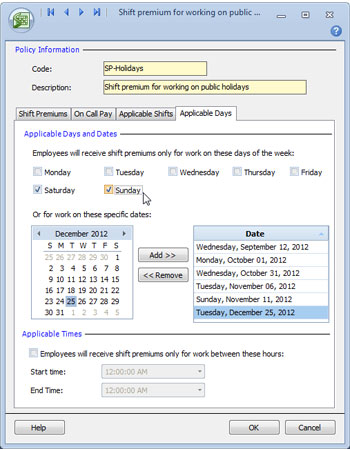
Shift Premium Form
- Added a new feature to make shift premium payable only on the portion of the shift
that falls within a specific time period of the day.
Time Off Reason Form
- An all-day duration value (in hours) can now be specified for each individual time
off reason. Previously, a single all-day duration value was used for all time off
reasons.
- Added the Foreground Color option to allow selection of the color to be displayed
for the time off reason text on the schedule views.
Select an Employee for the Shift Form
- Re-arranged fields to make the form more user-friendly.
- Added the ability to keep the form open after each shift assignment so that additional
employee candidates can be assigned to the same shift.
- The list of employee candidates for the shift is now configurable. You can customize
this list to display only employee information and workload data that are relevant
to your scheduling needs.
Business Information and Operational Settings Form
- Added the new Schedule Validation tab to list all shift assignment validation checks
that the system can perform. You can now enable/disable individual validation checks
and select a different color for each of the validation error flags. In previous
versions, validation error flags were always displayed in red on the schedule views
and reports.
- Added an option to allow users to specify the minimum rest time required between
any consecutive shifts assigned to the same employee.
Configure Details Form
- Added the option to display summary data for any combination of employee work hours,
on call hours, paid time off (PTO) hours, and their associated labor cost data.
This option is only enabled for the Daily View by Employee schedule view.
- Added the option to show or hide employee icons on the schedule views.
- Added the option for color selection of the notes marker displayed on the schedule
views for shift assignments with notes.
- Added the capability to export and import schedule view configuration settings.
- Added the capability to select custom fields for employee and shift data display
on the schedule views.
- Added the capability to remember the schedule view settings for each schedule file.
Top of Page
Other Enhancements
- E-mail messages are now sent in both HTML and plain text
- E-mailed schedules now include all employee scheduled time off information.
Top of Page